
Luma
Sync Luma events and attendees directly to Attio. Creates Event records with attendee tracking, relationship fields, and real-time webhook sync.
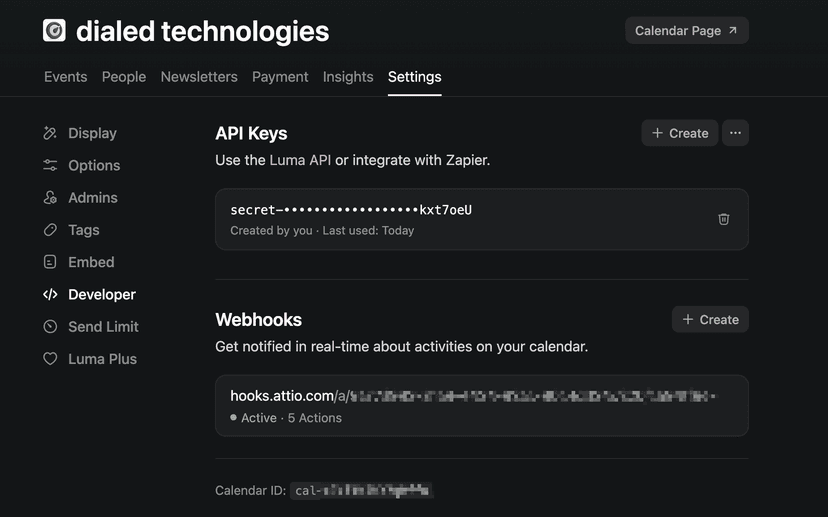
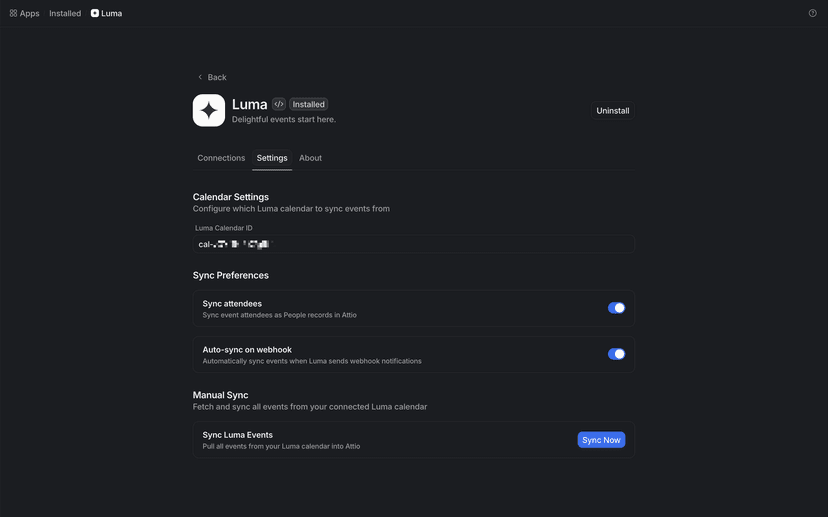
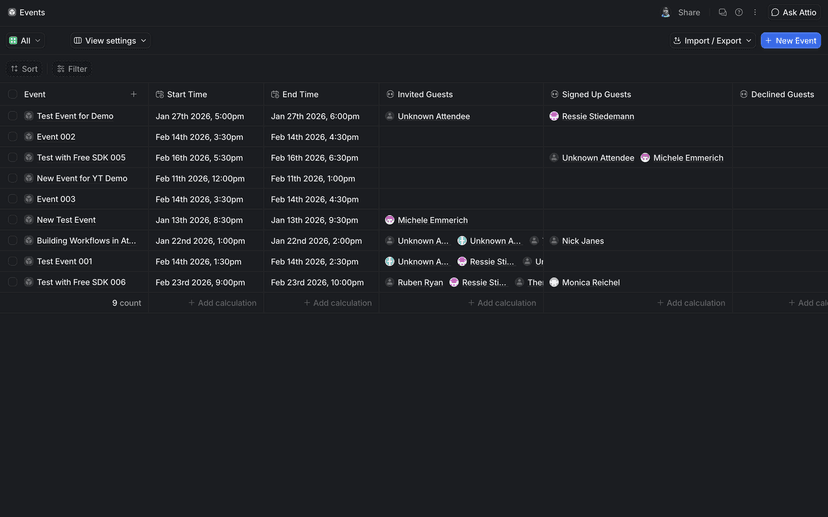
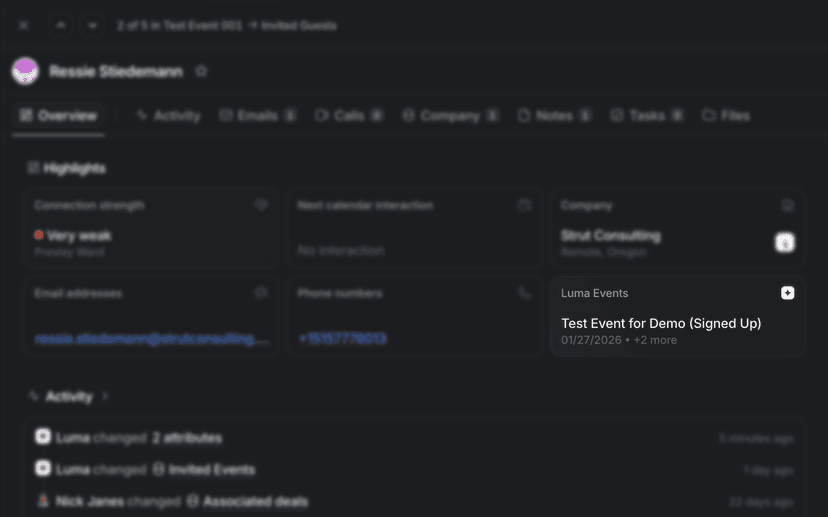
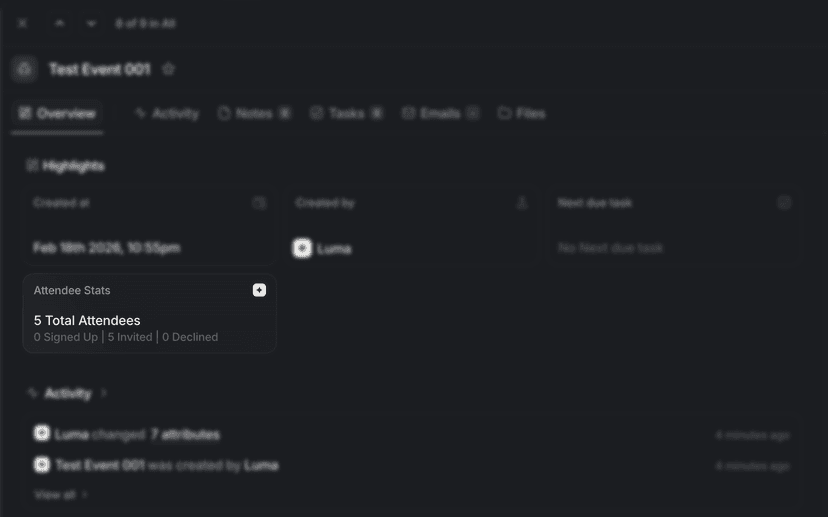
Sync your Luma events directly into Attio. This app pulls event data from your Luma calendar and creates Event records in your CRM, complete with details, timing, and attendee tracking. It automatically matches attendees to People records and maintains relationship fields so you can see who's invited, signed up, or declined for each event. The app creates a custom "Events" object in your Attio workspace with predefined fields for event details, timing, and attendee relationships. Currently syncs events from a single Luma calendar, with support for multiple calendars planned for a future release.
Event Sync
Pull event data from your Luma calendar into Attio as Event records. Fields for name, description, start/end times, location, URL, and visibility status are created automatically.
Attendee Tracking
Automatically creates People records for event attendees and links them through three relationship fields: Invited Guests, Signed Up Guests, and Declined Guests.
Webhook Sync
Enable automatic real-time sync when events are created or updated in Luma. Duplicates are handled automatically using the Luma event ID.
Manual Sync Action
Trigger a full sync from any record using the "Sync Luma Events" action to pull all events from your connected calendar.
Attendee Stats
widgetView total attendees, signed up, invited, and declined counts directly on Event records.
Luma Events
widgetSee Luma event attendance and status directly on Person records.
Auto-Sync on Webhook
webhookAutomatically sync events when Luma sends webhook notifications for new or updated events.
Sync Luma Events
record actionManually trigger a full sync of all events from your connected Luma calendar.
Event Follow-up
Use relationship fields to see who attended vs. who was just invited, then build targeted follow-up sequences in Attio.
Lead Generation
Event attendees automatically become People records in Attio, ready for enrichment and outreach.
Engagement Tracking
Track event attendance patterns across your contact base to identify your most engaged prospects and community members.
What You Need
- Attio account
- Luma (lu.ma) account
- Luma API key
- Luma Calendar ID
Step 1: Get Luma Credentials
- Log in to your Luma account and go to Settings > API.
- Generate or copy your API key.
- Copy your Calendar ID from your Luma calendar URL.
Step 2: Connect to Attio
- Install the Luma Events app in your Attio workspace.
- Go to Workspace Settings > Connections and add a new connection.
- Paste your Luma API key and enter your Calendar ID.
Step 3: Configure Sync
- Toggle Sync Attendees to import event guests as People records (enabled by default).
- Toggle Auto-sync on Webhook to capture events automatically as they change in Luma.
- Use "Sync Luma Events" to trigger an initial full sync.
Getting Help
Contact our team for setup assistance.
Common Issues
Ensure your Luma API key is valid and your Calendar ID matches the calendar URL. Check that webhook sync is enabled if events are not syncing automatically.
Performance
Real-time sync via webhooks with minimal latency. Manual sync available as fallback.
Ready to get started with Luma?
Install Luma and connect it to your Attio workspace.